
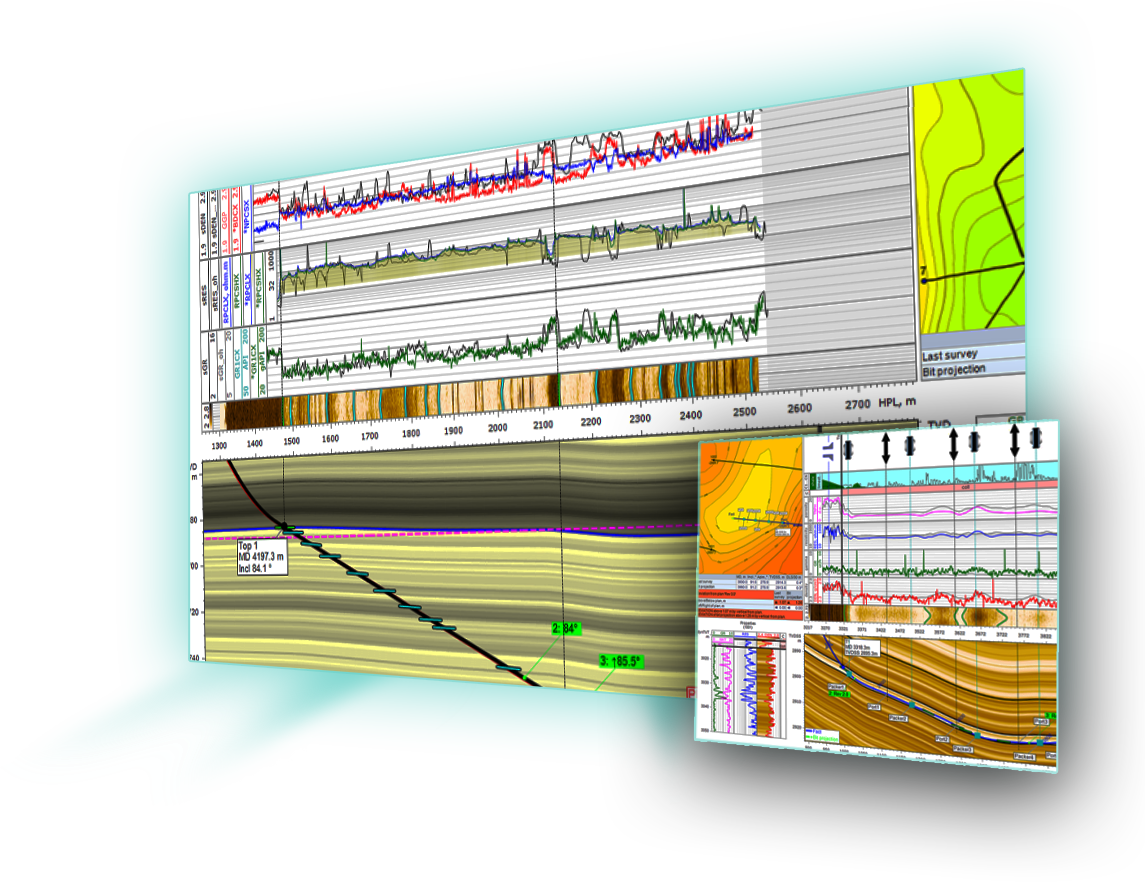
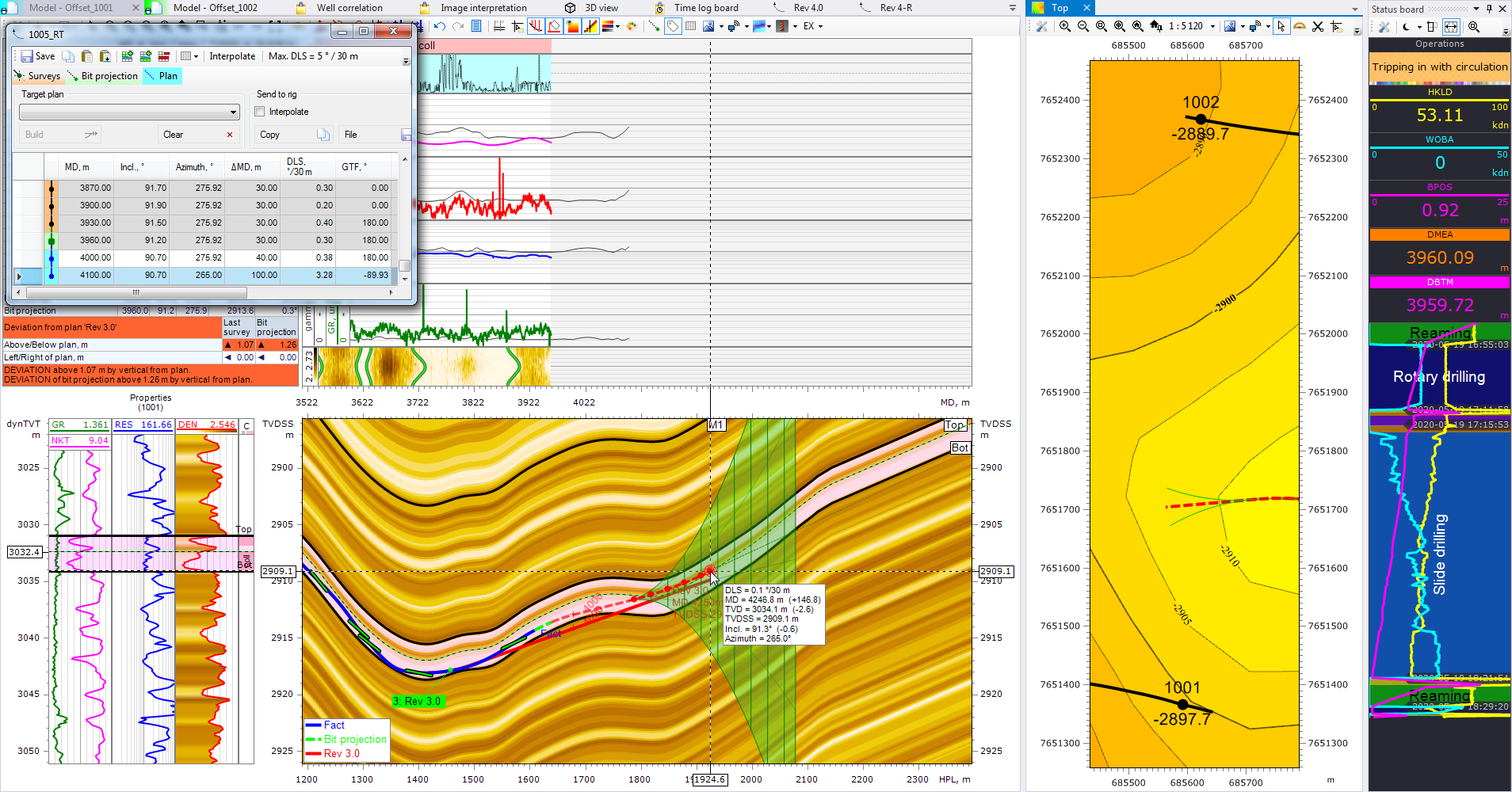
eSteering helps drilling and geosteering teams make faster, more confident decisions in real time. By combining live WITSML data, LWD/MWD inputs, mud logging, seismic sections, and geomechanical data into one environment, eSteering reduces uncertainty and keeps your wellbore precisely positioned within the reservoir.
Whether operating live or offline in remote locations, eSteering allows your team access to the data and tools needed to protect reservoir contact and maximize well performance.

Faster Interpretation

Zero Data Loss During Active Operations

Unlimited Real-Time Data Access

Multi-Offset Geosteering for Complex Reservoirs

Integrated 3D Structural Visualization

Real-Time Formation Analysis
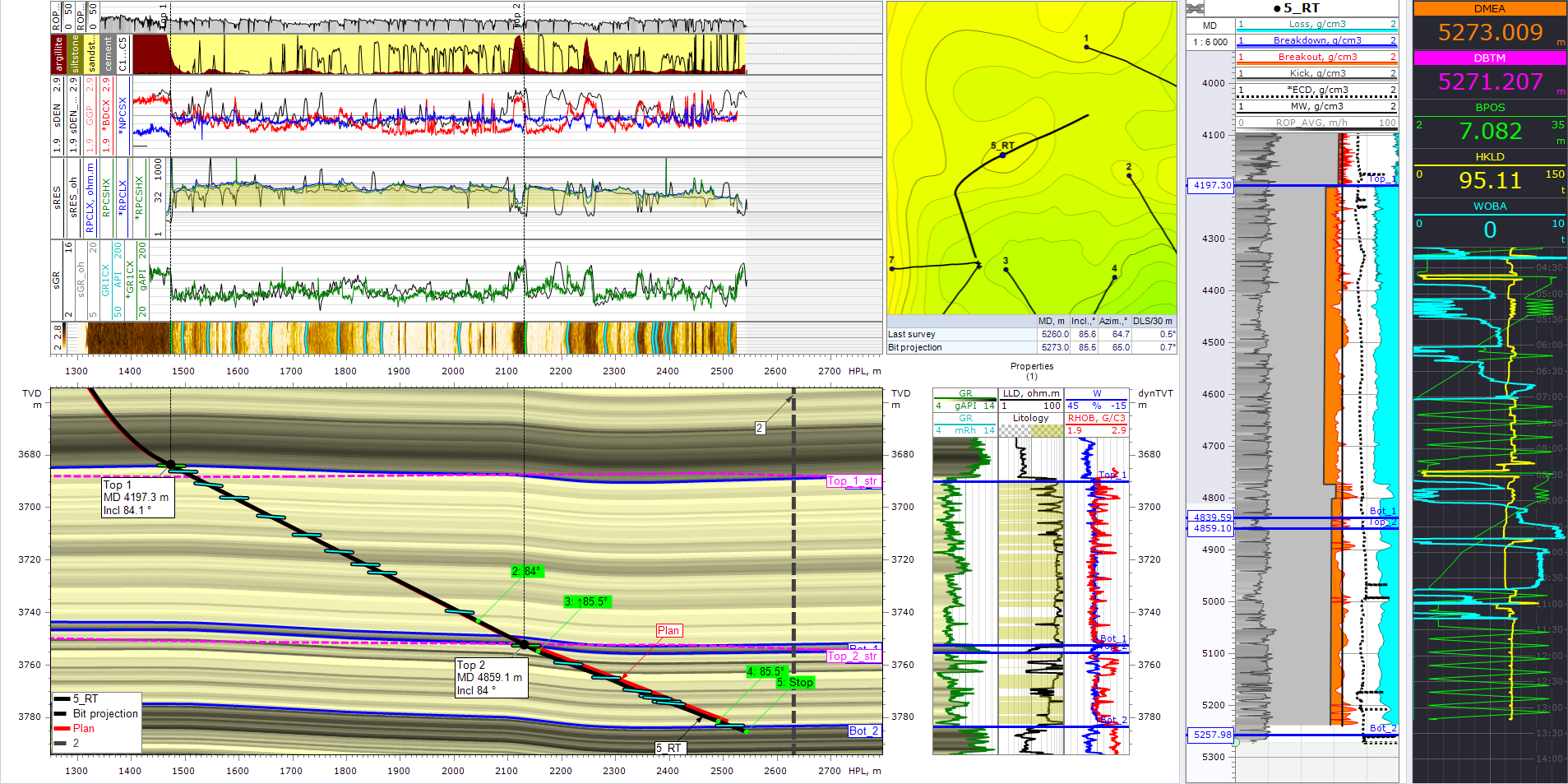
Eliminate Data Silos: Bring LWD, mud logging, seismic, and 3D geological models into one unified workspace for faster, clearer decision-making.
Improved Collaboration & Project Portability: Seamlessly transfer geological markers, well data, and correlation windows between projects using the new Import Projects feature eliminating manual file exchanges and reducing setup time.
Geological Model Integration: Seamless integration with 3D geological models, enabling the use of imported structures for accurate geosteering and better alignment with geological formations.
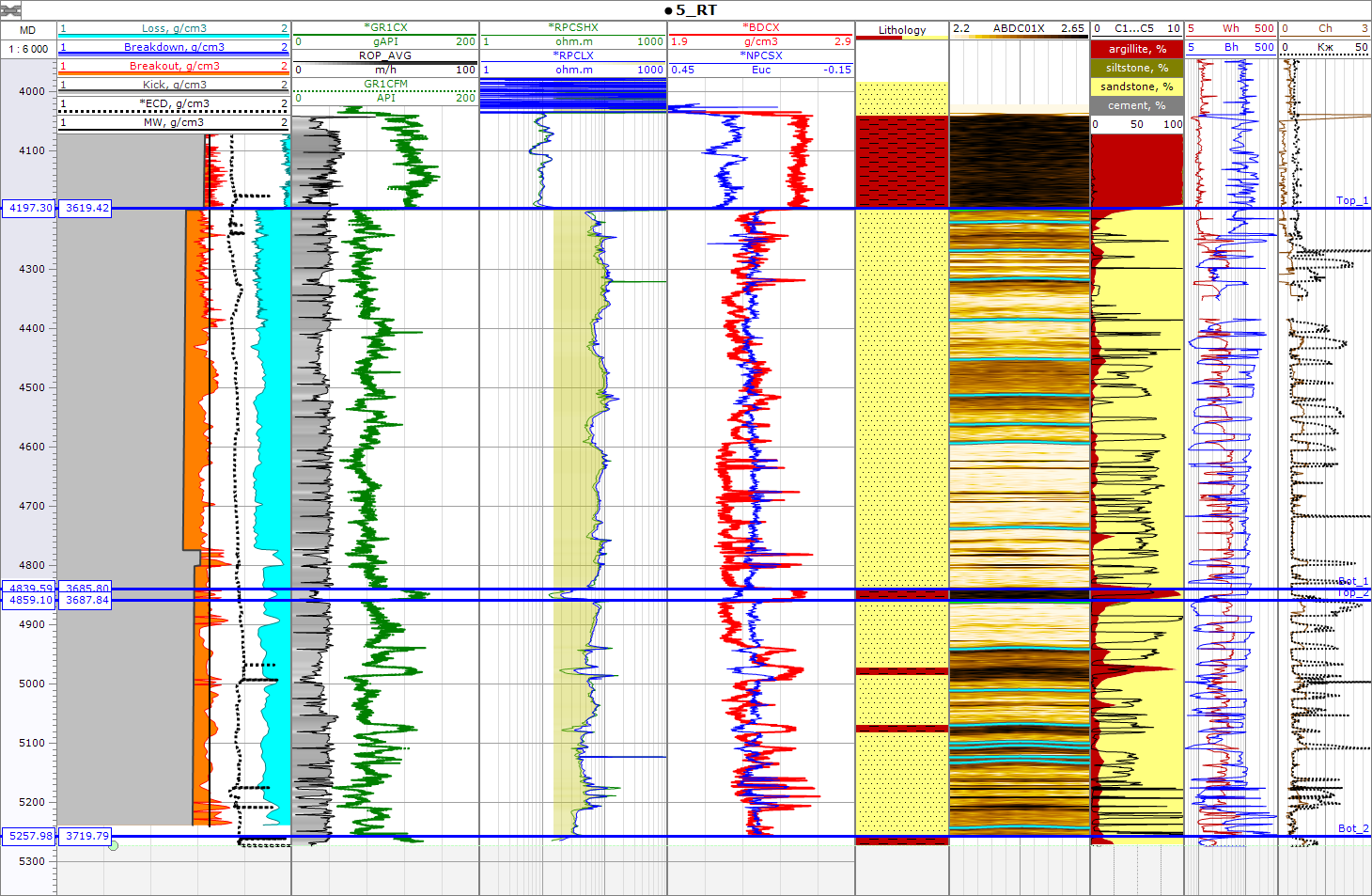
Post-Drilling Analysis: Provide valuable post-drilling analysis, allowing companies to assess the success of drilling campaigns, identify areas for improvement, and refine future drilling strategies.
Automation and Customization of Reports: Powerful report generator, FastReport, enabling automatic report generation according to preset templates and export in various formats allowing for flexible customization of reports and email automation from project components.
New: Project-to-Project Data Import
Previously, transferring data between projects required exporting files and manually reloading them into a new project. This update removes that intermediate step, significantly reducing setup time and improving usability for geosteering workflows.




From the main menu of your open project, select the Import function and choose the source project file. The system displays the project structure as a tree view. Users select the elements to import using checkboxes. All selected wells, including the active well, are copied into the current project as reference wells. When importing a well correlation window, unchecked wells are automatically removed to maintain structure integrity.